Trash Day Low FPS Fix: How to Optimize Performance, Lag, and Stutters
Okay, I need to vent for a second. I love Trash Day. I mean really love it. Dragging a rusty shopping cart through a junkyard with three other raccoons, all of us screaming into voice chat while a pile of garbage collapses on someone’s head? Peak co-op chaos. Off by One Games has made something special here.
But for about two weeks, my game felt like it was running through wet cement. Every time the trash started piling up, my frames fell off a cliff. Stutters, lag spikes, and that awful rubber-band feeling when you try to grab something. My PC isn’t a toaster, and my GPU usage was sitting at a sad little number, which made it even more confusing.
So I did what any desperate raccoon would do: I dug through Steam threads, hardware subreddits, patch notes, and random Discord screenshots until I found what actually works. This is the full list, in the order I’d try it. Some of it is weirdly simple. Some of it made me say ‘wait, that’s it?’ out loud.
Trash Day Controller Not Working: How to Fix Gamepad Issues on Steam
Why Is This Game So Hard on PCs, Anyway?
Quick explanation, because it helps to know what you’re fighting. Trash Day runs on real-time physics. Every can, bottle, and busted toaster is a physical object the game has to track and collide with everything else. Multiply that by thousands of items, and your CPU starts sweating long before your GPU does.
That’s why the usual advice of ‘just lower your graphics settings’ often does nothing here. The bottleneck is usually physics, timing, and bad configuration, not pretty textures.
Here’s a quick overview of what I’ll cover:
| Fix | Difficulty | Best For |
|---|---|---|
| Lower monitor refresh rate to 60Hz | Easy | High-refresh monitor owners |
| GPU driver tweaks | Easy | Everyone |
| Change display mode / use DXVK | Medium | Older or mid-range GPUs |
| Clean the trash save file | Medium | Late-session slowdowns |
| Background app cleanup | Easy | Everyone |
Fix #1: The 60Hz Bug (Yes, Seriously)
This is the one that fixed it for me, and I’m still a little annoyed it took me so long to find.
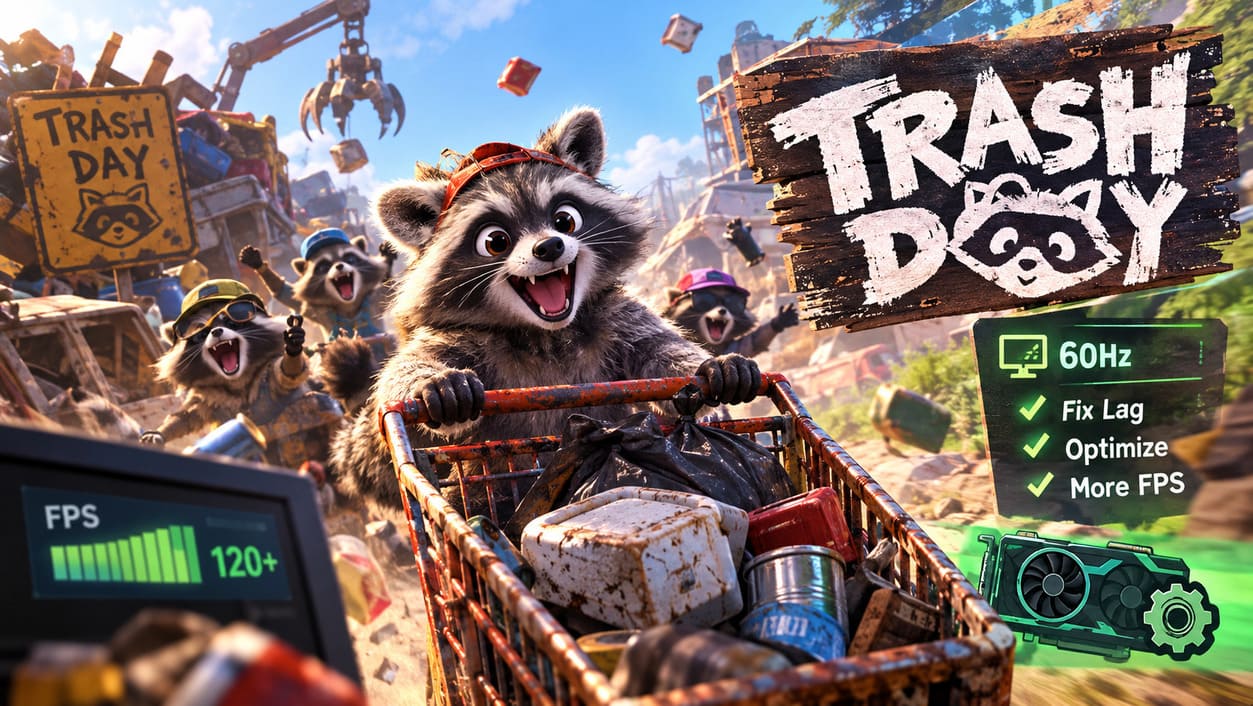
After one of the recent updates, the game’s internal render logic seems to get confused if your monitor runs above 60Hz. If you’ve got a 144Hz, 165Hz, or 240Hz panel, you might be affected. The symptom is the most frustrating kind: the game feels choppy even though your monitoring software says you have plenty of CPU and GPU headroom left.
What to do:
- Fully close Trash Day first.
- Right-click an empty spot on your desktop and open Advanced Display Settings.
- Pick the monitor you game on.
- Open the Refresh Rate dropdown and set it to 60Hz.
- Launch the game and move around a bit.
I honestly expected nothing. Instead, the micro-stutter was just gone. A lot of players in the community report the same thing, and it costs you zero visual quality. Yes, it hurts a little to downgrade your fancy monitor for one game, but you can switch it back for everything else afterward.
My take: If you try only one thing from this whole guide, make it this one.
Fix #2: Stop Trusting Default GPU Driver Settings
Factory driver settings are built to work okay with everything, which means they’re optimized for nothing in particular. A few manual changes can help a lot with frame pacing.
If You’re on NVIDIA
Open the NVIDIA App (or the old Control Panel), then use either Global Settings or create a profile just for the Trash Day executable:
- Shader Cache Size → Unlimited. The game spawns a ton of new objects, and a limited cache means constant recompiling. That’s a classic cause of random hitches.
- Low Latency Mode → Ultra. Input feels tighter and more connected to what’s happening on screen.
- Power Management Mode → Prefer Maximum Performance. This stops your GPU from downclocking during moments when the game is CPU-heavy and your card looks ‘idle.’
- Turn off overlays and recording features like ShadowPlay if you don’t need them. Background video hooks add extra overhead, even for a small indie game.
If You’re on AMD
Open AMD Software: Adrenalin Edition, go to Gaming, and find Trash Day in your list:
- Radeon Anti-Lag → ON. It cuts the delay between your input and what appears on screen, which makes dips feel less awful.
- Radeon Chill → OFF. Dynamic frame limiting and chaotic physics do not get along. Trust me on this.
Fix #3: Display Mode and the DXVK Trick
Ditch Borderless Windowed (If You Can)
Borderless Windowed looks convenient, but it runs through Windows’ desktop composition, and on DirectX 11 games that can add delay. In the in-game options, try Windowed or Fullscreen Exclusive instead.
If the game ends up in a windowed view with ugly borders you don’t want, try F11. It toggles a clean borderless layout without causing the engine conflicts that the menu option sometimes does.
Try DXVK on an Older or Mid-Range GPU
This is the nerdy one, but it’s not scary. DXVK is an open-source tool that translates DirectX 11 calls into Vulkan. For some setups, especially older or mid-tier cards, that makes frame delivery noticeably steadier.
Steps:
- Download the official release from the DXVK GitHub repository (only from there, never from random mirrors).
- Open the 64-bit folder and find
d3d11.dllanddxgi.dll. - Copy both into the folder where the Trash Day executable lives.
- Launch the game normally.
To undo it, just delete those two files. No harm done. Results vary, and I wouldn’t call this a guaranteed fix, but if the other tweaks weren’t enough, it’s absolutely worth ten minutes.
Fix #4: Your Save File Is Full of Garbage (Literally)
This one is almost poetic. A game about hoarding trash slows down because it’s hoarding too much trash.
Trash Day tracks the position and state of every piece of junk it spawns. During long sessions, that list just keeps growing, and the game begins to choke on its own database. If your game runs great at the start of a match but turns into a slideshow after a few hours, this is probably why.
Before you touch anything: make a backup copy of the file. Seriously. Copy-paste it somewhere safe first.
Steps:
- Exit the game and make sure Steam isn’t in the middle of a cloud sync.
- Press Windows Key + R to open the Run box.
- Type
%localappdata%Lowand press Enter to reach your hidden app data. - Navigate through the developer folders to your game’s save profiles (look for the specific save number and session).
- Find the file called Trash.json. It stores the physics state of every loose item.
- Open it in Notepad or another plain text editor.
- Keep the header exactly as it is. It looks roughly like this:
{ 'DataType': 'TrashData', 'DataVersion': 0, 'GameVersion': '1.0.0', 'Items': [
- Delete the huge list of item entries that follows, then close the brackets properly so the file stays valid.
- Save and relaunch.
Expect a little stutter for the first few minutes while the game repopulates the items it actually needs for progress. After that, the difference can be dramatic. Think of it like emptying the overflowing bin behind your house.
Fix #5: Kick the Background Freeloaders Out
When the physics engine is under heavy load, it leans hard on a single CPU core and your memory speed. Anything else fighting for those resources shows up as input lag.
- Check Task Manager (
Ctrl + Shift + Esc). Sort by CPU and memory, then close heavy apps, browsers with twenty open tabs, and any streaming tools you don’t need before joining a lobby. - Turn off Hardware Acceleration in Discord. Go to Advanced settings and switch it OFF. Discord doesn’t need to borrow your GPU while you’re yelling about a stolen cart.
- Clear your Windows Temp folder. Run
%localappdata%\Temp, select everything withCtrl + A, and delete withShift + Delete. Skip anything that says it’s in use or needs admin permission.
None of these are glamorous, but together they take real pressure off the system.
My Recommended Order (So You Don’t Waste Time)
If you want the fastest path to a smoother game, here’s how I’d go:
- Set your monitor to 60Hz and test.
- Apply the GPU driver tweaks.
- Switch the display mode and close background apps.
- Clean Trash.json if the lag builds up over time.
- Try DXVK as a last resort.
Test after each step so you know exactly what helped. Otherwise, you’ll never know which change actually fixed it.
Final Thoughts From a Very Tired Raccoon
Look, I don’t love that I had to do all this. A game this fun deserves smoother performance out of the box, and I really hope the devs address the refresh rate issue and the save bloat in a future patch. Off by One Games clearly has a hit on their hands, and these problems feel like growing pains, not neglect.
But once I got everything sorted, the difference was night and day. Grabbing items felt responsive again. The cart didn’t judder. And watching four raccoons accidentally launch a refrigerator across the map in glorious, smooth motion? Pure joy.
So give these a shot, let me know in the comments which one worked for you, and may your junkyard runs be stutter-free. See you in Raccoon Paradise.